
⚡ POLLING RATE TESTER PRO
Move rapidly
Gamepad API
Browser-based
Zero logs
Polling rate = events per second (Hz). Higher = smoother response.
📜 TEST HISTORY
Every polling rate & performance test
Every tool runs in your browser using high-precision JavaScript timers. Free forever, no signup, no installs.
Mouse Polling Rate Test
Check your gaming mouse Hz — verify 125, 500, 1000, 4000, or 8000Hz with millisecond precision.
Keyboard Polling Rate Test
Measure how fast your keyboard reports key presses. Critical for typists pushing 100+ WPM and gamers.
Controller Polling Rate Test
The only browser-based gamepad Hz checker. Works with Xbox, PlayStation, Switch Pro & generic USB.
CPS Test (Clicks Per Second)
Click speed test in 1s, 5s, 10s, 30s & 60s modes. Measure CPS, total clicks, and consistency.
Click speed test in 1s, 5s, 10s, 30s & 60s modes. Measure CPS, total clicks, and consistency.
Scroll Rate Test
Test your mouse wheel scroll rate. See ticks per second, smoothness, and consistency in real time.
Reaction Time Test
F1-style reflex test. Measure your reaction speed in milliseconds & compare against pro gamers.
What is polling rate?
Polling rate is the frequency, measured in Hertz (Hz), at which a peripheral reports its state to your computer. A 125Hz device sends 125 updates per second; a 1000Hz device sends 1000. The formula is simple: response time (ms) = 1000 ÷ polling rate (Hz).
| Polling Rate | Response Time | Best Use Case | CPU Impact |
|---|---|---|---|
| 125 Hz | 8 ms | Bluetooth controllers, casual, office | Negligible |
| 250 Hz | 4 ms | Wireless controllers, 2.4GHz pads | Very low |
| 500 Hz | 2 ms | Competitive baseline, most setups | Low |
| 1000 Hz | 1 ms | Competitive FPS, esports, wired pads | Low-moderate |
| 2000 Hz | 0.5 ms | Pro-level high-refresh mouse setups | Moderate |
| 4000 Hz | 0.25 ms | Top-tier mice, 240Hz+ monitors | Noticeable |
| 8000 Hz | 0.125 ms | Bleeding edge, modern CPU required | High |
Polling Rate vs Input Lag: They Are Not the Same Thing
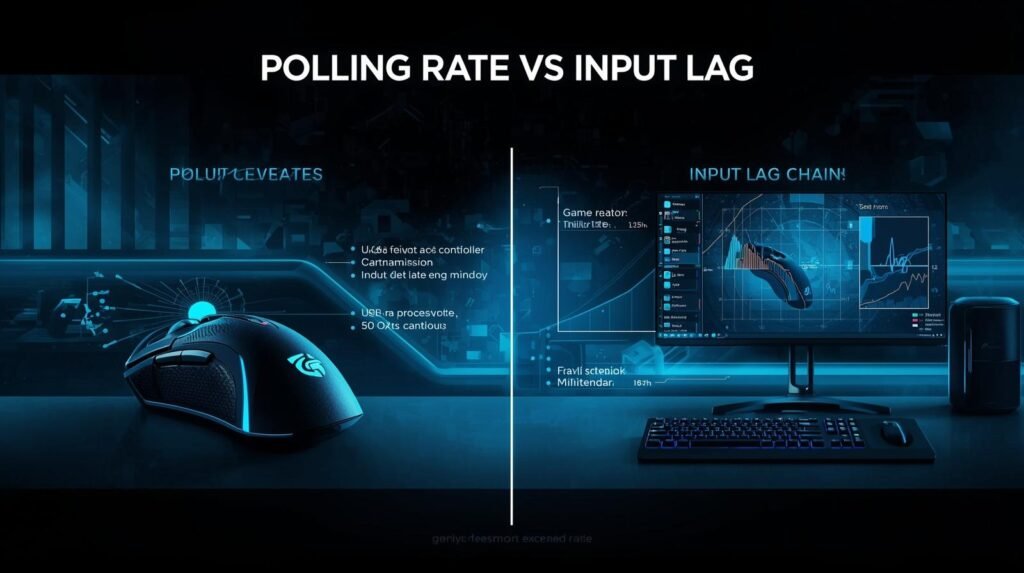
Polling rate and input lag are often used interchangeably, but they describe different things. Polling rate is how often your device reports its position. Input lag — sometimes called end-to-end latency — is the total delay from your physical action to the on-screen response.
The full input chain: controller firmware processing → USB or wireless transmission → OS driver handling → game engine tick → monitor display delay. Your polling rate contributes only one link in that chain. A 1000Hz controller reduces its share of latency to 1ms, but if your monitor runs at 60Hz, the display alone adds up to 16.7ms. Fix the bottleneck, not just the polling rate number.
Why Polling Rate Matters for Competitive Gaming
In CS2, Valorant, Apex Legends, and fighting games, inputs must register the moment you make them. A mouse or controller at 125Hz can introduce up to 8ms of device-side delay before the game processes the move. At 1000Hz, that drops to 1ms.
- Flick shots and micro-adjustments — land cleaner at 1000Hz because the cursor position updates more often between frames
- Frame-perfect inputs in fighting games — a stable 1000Hz controller means combo timings register on the exact frame intended
- Jitter and stability matter more than raw Hz — a stable 500Hz beats an unstable 1000Hz reading every time
- Casual and story games — 125Hz is perfectly fine and saves wireless battery life
Pro Tip
Most competitive FPS players run at 1000Hz, not 4000Hz or 8000Hz. Diminishing returns above 1000Hz are real, and very high rates add CPU load that can hurt frame times on older hardware. Check your actual rate with the mouse polling rate test or controller polling rate test.

How to Run a Gamepad Polling Rate Test
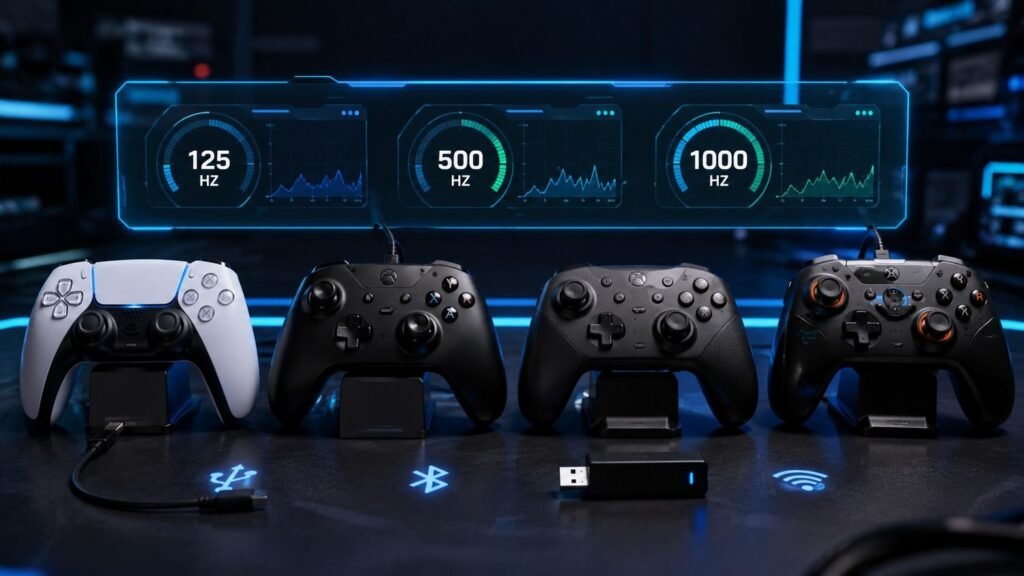
- Connect your controller via USB cable or 2.4GHz dongle (Bluetooth will show lower values by design).
- Open the controller polling rate test.
- Move an analog stick steadily in smooth circles for 6 to 10 seconds.
- Read your average Hz and check jitter. If jitter sits above 30% of your average Hz, the connection is the issue, not the controller itself.
Controller Polling Rate Test: What to Expect From Your Gamepad
Most guides cover mouse polling rate and ignore controllers entirely. Controllers are different: the rate varies by connection type, and the gap between Bluetooth and wired can be 7ms — far more impactful than most in-game settings.
| Controller | Wired USB | Bluetooth | 2.4GHz Dongle |
|---|---|---|---|
| PS5 DualSense | ~1000Hz | 250–500Hz | N/A |
| Xbox Series X/S | ~125Hz | ~125Hz | Up to 1000Hz |
| Nintendo Switch Pro | ~125Hz | ~125Hz | N/A |
| Steam Deck (built-in) | ~500Hz | N/A | N/A |
| 8BitDo / GameSir pro | 1000Hz | 125–250Hz | 1000Hz |
Controller polling rate, decoded
 Uses getCoalescedEvents() API
Standard sites miss up to 87% of mouse events above 500Hz. We capture every coalesced event — essential for accurate 1000Hz, 2000Hz, and 8000Hz readings.
 Only browser-based controller test
Competitors test mouse only. We test PS5 DualSense, Xbox Series, Switch Pro, Steam Deck no app, no driver, no download.
 Zero data collection
Your inputs never leave your device. All computation runs locally in your browser. No account, no tracking, no fingerprinting.
| Feature | Us | Others |
|---|---|---|
| getCoalescedEvents() accuracy | ✓ | ✗ |
| Controller / gamepad test | ✓ | ✗ |
| Keyboard polling test | ✓ | ✗ |
| Supports 8000Hz | ✓ | ✗ |
| Zero data collection | ✓ | ⚠ |
 Full 125Hz–8000Hz range
Most tools cap at 1000Hz useless for HyperPolling owners. We accurately measure up to 8000Hz, validated against vendor software.
How Our Polling Rate Test Works
1. Open the Tool Pick any test from above. Each tool loads instantly — no signup, no download, no installer.
2. Generate Input Move your mouse rapidly in circles, hold a key, or press buttons on your controller. Tests typically need 5–10 seconds.
3. Read the Results Get live Hz, average, peak, minimum, and stability stats. Compare against your device’s advertised spec.
4. Optimize Your Setup If results don’t match the spec, check vendor software (Razer Synapse, Logitech G HUB, etc.) or USB port (use USB 2.0/3.0).
Frequently Asked Questions
What is a polling rate test?
A polling rate test measures how many times per second your mouse, keyboard, or controller reports input data to your computer. The result is shown in Hertz (Hz). A 1000Hz polling rate means your device sends data 1000 times per second, equating to a 1ms response time.
What is a good polling rate for gaming?
For competitive gaming, 1000Hz is the recommended standard, providing 1ms input delay. Casual gaming works well at 500Hz (2ms). Office use is fine at 125Hz (8ms). Ultra-high rates like 4000Hz or 8000Hz offer marginal real-world benefit but increase CPU usage.
Is the polling rate test accurate in a browser?
Our browser-based polling rate test uses high-precision performance.now() timers and the getCoalescedEvents() API to capture every input. Results are typically within 5–10% of native polling rate values. For absolute precision, use vendor software like Razer Synapse or Logitech G HUB.
What polling rate does a PS5 DualSense run at?
The PS5 DualSense runs at approximately 1000Hz wired over USB to a PC, 250–500Hz over Bluetooth, and around 250Hz on the PS5 console itself. Real-world tests often record 700–1000Hz on PC depending on the USB port. Use the gamepad polling rate test to check your specific setup.
What is the difference between polling rate and input lag?
For competitive gaming, 1000Hz is the recommended standard, providing 1ms input delay. Casual gaming works well at 500Hz (2ms). Office use is fine at 125Hz (8ms). Ultra-high rates like 4000Hz or 8000Hz offer marginal real-world benefit but increase CPU usage.
Why does my polling rate fluctuate during testing?
For mice: keep moving continuously in tight circles — devices send fewer events when still. For controllers: move the analog stick steadily and avoid sudden stops. Other causes include Bluetooth interference, a weak USB hub, Windows power-saving mode interrupting the polling cycle, and low battery (many wireless controllers quietly reduce their Hz as battery drains).
Do I need to download anything?
No download is required. All polling rate tests on PollingRateTestC run entirely in your browser using JavaScript. No installation, no signup, no data collection, no tracking.
Does higher polling rate increase CPU usage?
Yes, but minimally. A 1000Hz polling rate produces negligible CPU load on modern systems. Going to 4000Hz or 8000Hz can noticeably increase CPU usage and may reduce FPS on older hardware, especially in CPU-bound games.
How do I test my controller polling rate online?
Connect your controller via USB or 2.4GHz dongle, open the controller polling rate test, then move an analog stick in smooth circles for 6 to 10 seconds. The tool reads the browser Gamepad API and shows your live Hz, average, and stability in real time. No download required. Works with Xbox, PlayStation, Switch Pro, Steam Deck, and generic USB gamepads.
What polling rate does an Xbox controller run at?
Standard Xbox Series and Xbox One controllers report at approximately 125Hz over a wired USB or standard wireless connection. Using the official Xbox Wireless Adapter on PC can bring the rate up to 1000Hz. The free Windows tool hidusbf can also push a wired Xbox controller to 1000Hz by overclocking USB HID polling.
What is the difference between polling rate and input lag?
Polling rate is how often your device reports its position to your computer. Input lag is the total delay from physical action to on-screen response — it includes polling rate, firmware processing, USB or wireless transmission, game engine tick, and your monitor’s display delay. A 1000Hz polling rate contributes only 1ms to that chain. A fast controller paired with a slow 60Hz display can still feel sluggish because the display is the bottleneck, not the controller.
Can I test polling rate on mobile?
Mobile touchscreens report at the device’s touch report rate (typically 60–360Hz), not a traditional USB polling rate. Our mouse and keyboard tests are designed for desktop. The controller polling rate test works on mobile Chrome if a USB or Bluetooth gamepad is connected. Reaction time tests work on mobile but show slightly higher values due to touch latency.